lbr_bringup
The lbr_bringup package hosts some launch files, which can be included via standard procedures:
from launch import LaunchDescription
from launch.actions import IncludeLaunchDescription
from launch.substitutions import PathSubstitution
from launch_ros.substitutions import FindPackageShare


def generate_launch_description() -> LaunchDescription:
    return LaunchDescription(
        [
            IncludeLaunchDescription(
                PathSubstitution(
                    FindPackageShare("lbr_bringup") / "launch" / "mock.launch.py"
                )
            )
        ]
    )
The launch files can also be run via the command line, as further described below.
Launch Files
Mock Setup
Useful for running a physics-free simulation of the system. This launch file will (see mock.launch.py):
Run the
robot_state_publisherRun the
ros2_control_nodewith mock components as loaded fromrobot_descriptionLoad
ros2_controllers
ros2 launch lbr_bringup mock.launch.py \
    model:=iiwa7 # [iiwa7, iiwa14, med7, med14]
Note
List all arguments for the launch file via ros2 launch lbr_bringup mock.launch.py -s.
Gazebo Simulation
Useful for running a physics simulation the the system. This launch file will will (see gazebo.launch.py):
Start the
robot_state_publisherStart the
GazebosimulationSpawn the selected robot model (includes the
ros2_control_nodewithin theGazeboplugin)Load
ros2_controllers
ros2 launch lbr_bringup gazebo.launch.py \
    model:=iiwa7 # [iiwa7, iiwa14, med7, med14]
Note
List all arguments for the launch file via ros2 launch lbr_bringup gazebo.launch.py -s.
Hardware
Warning
Do always execute in T1 mode first.
Note
Make sure you have followed Hardware Setup first.
Client side configurations:
Launch the
LBRServerapplication on theKUKA smartPAD
Select
FRI send period:10 msIP address:your configurationFRI control mode:POSITION_CONTROLorJOINT_IMPEDANCE_CONTROLFRI client command mode:POSITION
Launch file:
This launch file will (see hardware.launch.py):
Run the
robot_state_publisherRun the
ros2_control_nodewith thelbr_fri_ros2::SystemInterfaceplugin from lbr_ros2_control as loaded fromrobot_description(which will attempt to establish a connection to the real robot).Load
ros2_controllers
ros2 launch lbr_bringup hardware.launch.py \
    model:=iiwa7 # [iiwa7, iiwa14, med7, med14]
Note
List all arguments for the launch file via
ros2 launch lbr_bringup hardware.launch.py -s.
RViz
This launch file will spin up RViz for visualization. It will (see rviz.launch.py):
Read
RVizconfigurations.Run
RViz.
ros2 launch lbr_bringup rviz.launch.py \
        rviz_cfg_pkg:=lbr_bringup \
        rviz_cfg:=config/mock.rviz # [gazebo.rviz, hardware.rviz, mock.rviz]
Note
List all arguments for the launch file via ros2 launch lbr_bringup rviz.launch.py -s.
Note
Requires the user to run Mock Setup, Gazebo Simulation or Hardware first.
MoveIt
Please note that MoveIt configurations are specific and you as a user will need to create your own for your system (potentially containing multiple robots or an end-effector).
ros2 launch lbr_bringup move_group.launch.py \
    model:=iiwa7 \
    mode:=mock \
    rviz:=true
Note
Requires the user to run Mock Setup, Gazebo Simulation or Hardware first.
Note
Runs RViz with specific MoveIt configurations.
General Information on the FRI
The FRI lets the user select a FRI control mode and a FRI client command mode. When running the LBRServer:
Select
FRI control mode
Select
FRI client command mode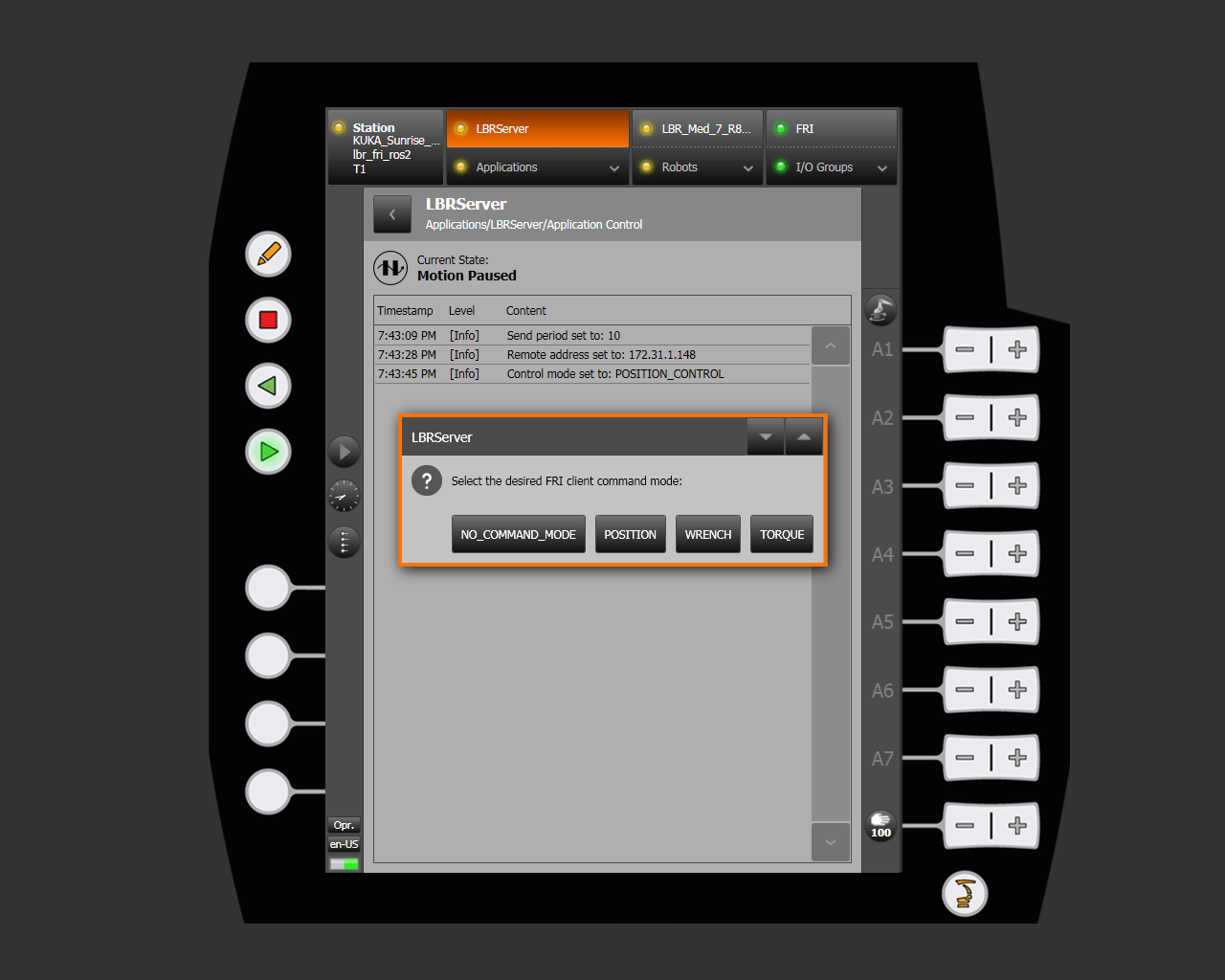
The FRI control mode specifies the mode in which the robot is controlled, and the FRI client command mode specifies the commands that the user sends.
Troubleshooting
Noisy Execution
Frequency: Make sure the
ros2_control_nodefrequency and theFRI send periodare compatible, consider changingupdate_ratein hardware.yaml.Realtime priority: Set real time priority in
code /etc/security/limits.conf, add the line:user - rtprio 99, where user is your username.